OBIEE 12C Installation Step by Step

I installed OBIEE 12c in my local server and below is the steps followed during the installation of OBIEE 12c.


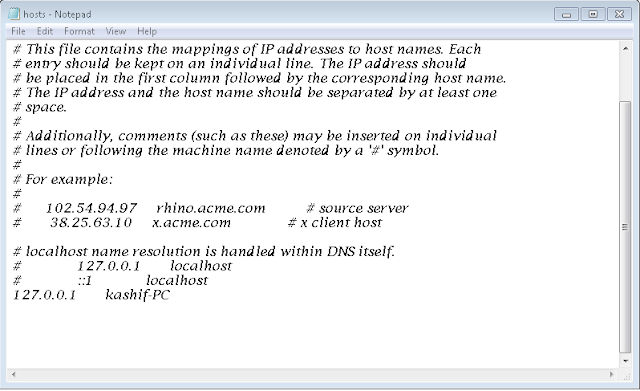
First step is to map your hostname with IP.
OBIEE 12C Installation
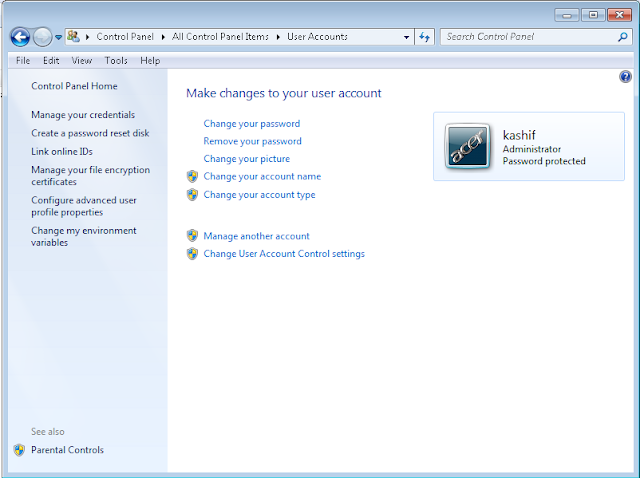
Go to control panel and do the below steps
OBIEE 12C Installation


Mention the environment variable path for BI_PRODUCT_HOME

OBIEE 12C Installation

Download and install the latest Java

OBIEE 12C Installation


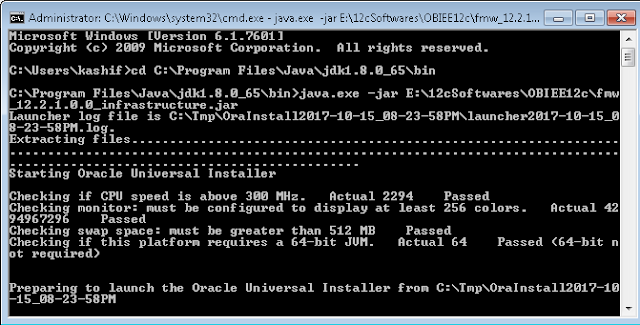
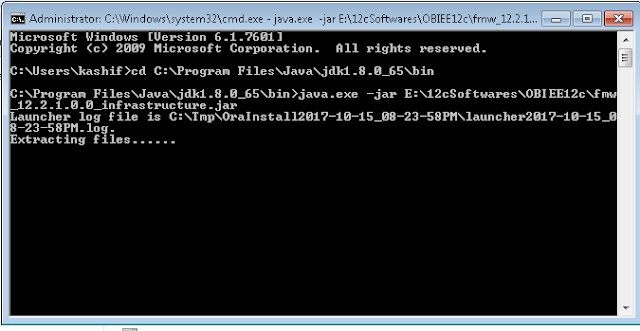
Go to CMD prompt and run it as Administrator and  launch the infrastructure.jar file as mentioned in below screenshot and follow the below screenshot as it is.
Add caption


OBIEE 12C Installation


OBIEE 12C Installation


OBIEE 12C Installation


OBIEE 12C Installation


OBIEE 12C Installation


OBIEE 12C Installation


Run the Setup_bi_platform file as 7-zip


OBIEE 12C Installation


OBIEE 12C Installation

Run the RCU from the below location


OBIEE 12C Installation


OBIEE 12C Installation


Run the configuration file as mentioned below


OBIEE 12C Installation

OBIEE 12C Installation

OBIEE 12C Installation

OBIEE 12C Installation


Congrats!!! You have done with OBIEE 12C Installation and configuration.
OBIEE 12C Installation

OBIEE 12C Installation


Comments