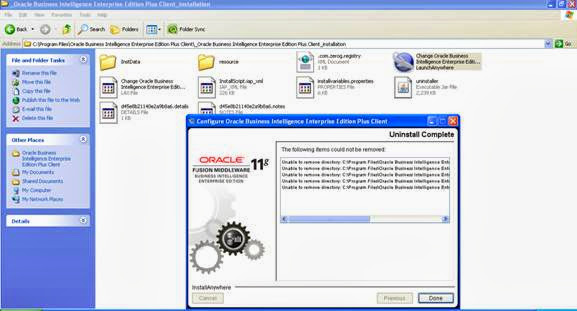
once you installed OBIEE 11g client, below steps for configuring OBIEE client
 |
| OBIEE 11g client configuration |
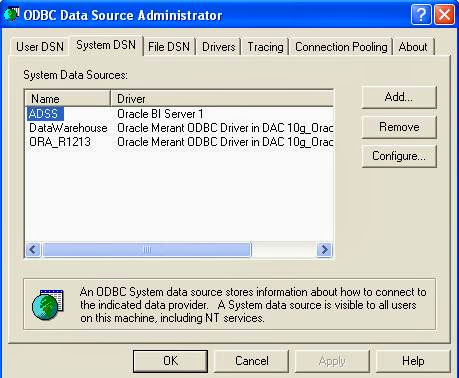
Go to Control Panel - system DSN and click on ADD - You will find Oracle BI Server 1 - Click on it.
 |
| OBIEE 11g client configuration |
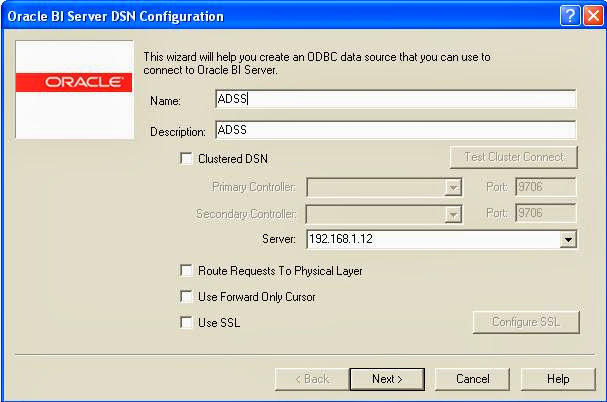
1. Give the Name of data source
2. Give the IP or Host name of OBIEE server installed machine
 |
| OBIEE 11g client configuration |
hit on Next
|
| OBIEE 11g client configuration |
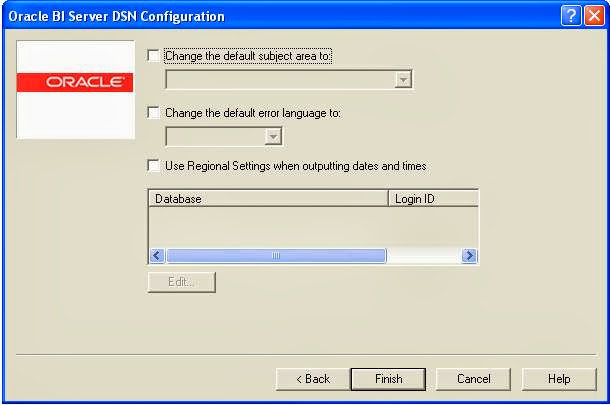
Give finish
 |
| OBIEE 11g client configuration |
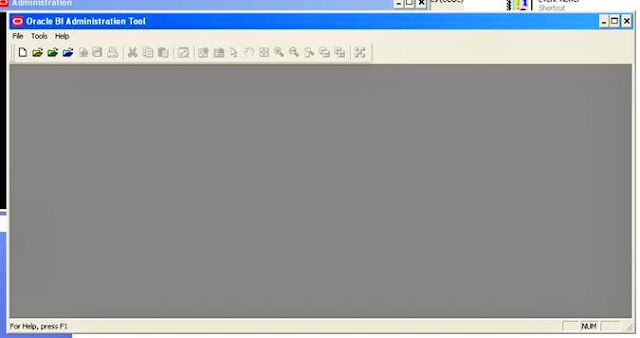
once you given finish, It will navigate to BI Admin.
 |
| OBIEE 11g client configuration |
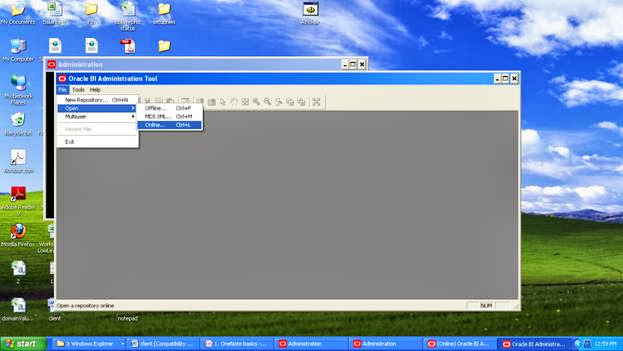
Go to FILE - OPEN - Online
 |
| OBIEE 11g client configuration |
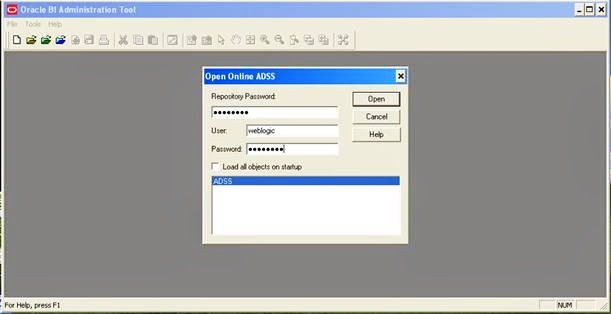
Enter repository password and hit on open
 |
| OBIEE 11g client configuration |
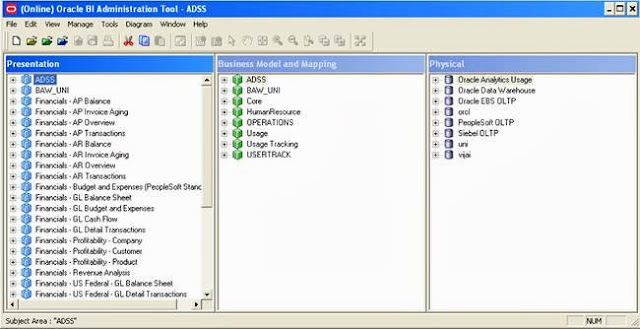
You have done, Repository will get open for you... Now you can work and do changes in repository
 |
| OBIEE 11g client configuration |
Thanks
Kashu


Comments
Post a Comment